
5 min read · Updated 2026-11-09
Setting Deadlines and Automated Reminders: Soft vs Hard Deadlines
Organising an international meeting often stalls not because people cannot agree, but because voting drags on indefinitely. A few fast responders reply within minutes, while others forget the link in their inbox, leaving the organiser in limbo.
SyncWithTeam includes built-in deadline and reminder automation designed to drive polls to a decisive conclusion without awkward manual follow-ups.
Here is how soft deadlines, hard closing deadlines, expected response targets, and automated stagnation alerts work.
Soft vs Hard Deadlines: Which should you choose?
When setting a deadline, SyncWithTeam offers two distinct modes:
1. Soft Deadlines (Target reminder)
A soft deadline tells participants when you plan to pick a time, but keeps voting open after the cutoff passes.
- Best for: Collaborative internal teams, flexible client discovery calls, and situations where late input is still helpful.
- Behavior: Guests see a clear countdown (Target deadline [Date]). If someone opens the link an hour after the deadline, they can still submit their availability.
2. Hard Deadlines (Automatic close)
A hard deadline strictly enforces the cutoff by locking answers automatically the moment the timestamp is reached.
- Best for: Tight scheduling windows, executive committees, board meetings, and vendor negotiations.
- Behavior: The countdown says Closes [Date]. Once the deadline passes, new votes are blocked, preventing last-minute changes from disrupting agreed-upon slots.
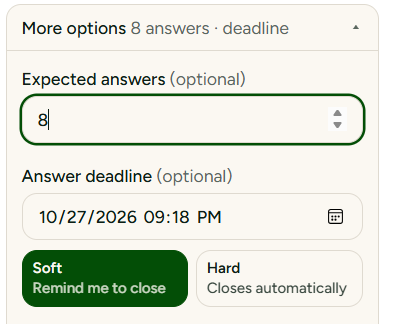
Setting a deadline when creating a meeting
You can configure deadlines in two ways:
A. Relative deadlines (Automatic calculation)
If you configure a default deadline under Profile & settings, SyncWithTeam calculates the cutoff dynamically relative to the first offered meeting slot:
- 24 hours before the first time
- 48 hours before the first time
- 3 days before
- 1 week before
This ensures your deadline is always realistic—it will never land in the past or after the meeting is supposed to occur.
B. Specific date & time (Manual selection)
Under Additional options on the homepage or via ✎ Edit deadline & notifications on an active meeting, you can pick an exact calendar date and hour.
"Expected answers": Know when everyone is in
If you are inviting a known group (e.g. 5 department heads), set the Expected answers field to 5.
- Progress tracking: The organiser sidebar clearly displays progress:
3 answered · 2 people haven't answered yet - Completion alert: Once all 5 participants have submitted their availability, SyncWithTeam marks the poll complete (
everyone expected is in ✓) and sends you a final notification so you can confirm the winning slot immediately.
Automated drive-forward reminders: How the stagnation check works
SyncWithTeam includes a background algorithm called Drive the meeting forward (notifyDrive). It monitors your poll without spamming your inbox:
- Stagnation detection: If at least 3 people have voted and then activity abruptly halts for significantly longer than the median time between earlier answers, SyncWithTeam sends the organiser a gentle alert.
- Approaching dates: If offered meeting dates are drawing close and no slot has been confirmed yet, you receive a reminder before your best window expires.
- Smart pause: When you set a concrete deadline on a meeting, general drive-forward alerts automatically pause to avoid duplicate emails.
Extending or renewing an expired deadline
What happens if a deadline passes but you still need more votes?
- On active polls: Click ✎ Edit deadline & notifications in the organiser header, select a new datetime, and click Save.
- During partial bookings: If you use Book & keep collecting to confirm week one of a workshop after the deadline has expired, a notice prompts you:
Your deadline has passed — pick a new one so reminders work again.
Enter a new future date, and the stagnation tracker resets cleanly from that point.
💡 The thinking behind it: Why meeting polls die in silence explains how the stagnation check decides when to remind you.