5 min read · Updated 2026-11-09
Booking Multiple Meetings from One Poll: Series, Recurring Syncs, and Partial Bookings
When you are organizing an intensive four-week project sprint, a recurring committee review, or a multi-session training course, creating and sharing four separate meeting polls is frustrating for everyone. Participants have to answer four different links, while you have to reconcile overlapping responses and cross-check calendars across multiple browser tabs.
SyncWithTeam solves this by letting you collect availability for an entire project period in a single poll, and then either auto-generate an evenly spaced series, hand-pick individual sessions, or book upcoming dates while keeping the poll open for later weeks.
Here is how to schedule multi-session sprints and recurring syncs efficiently from one invitation.
Step 1: Open dates covering your entire sprint or project
When creating your meeting poll:
- Select the full date span needed for all sessions (for example, all weekdays across the next 3 to 4 weeks).
- Propose reasonable time blocks for each day.
- Share the guest link with your team.
Participants respond once, painting their availability across the whole sprint window in under twenty seconds.
Step 2: Star key teammates and set your series targets
Once team members have answered, go to the Organiser view:
- Under the Answers panel on the right, click the star next to any person whose presence is strictly non-negotiable (such as the product lead, client contact, or sprint facilitator). SyncWithTeam prioritizes time slots where all starred members are free.
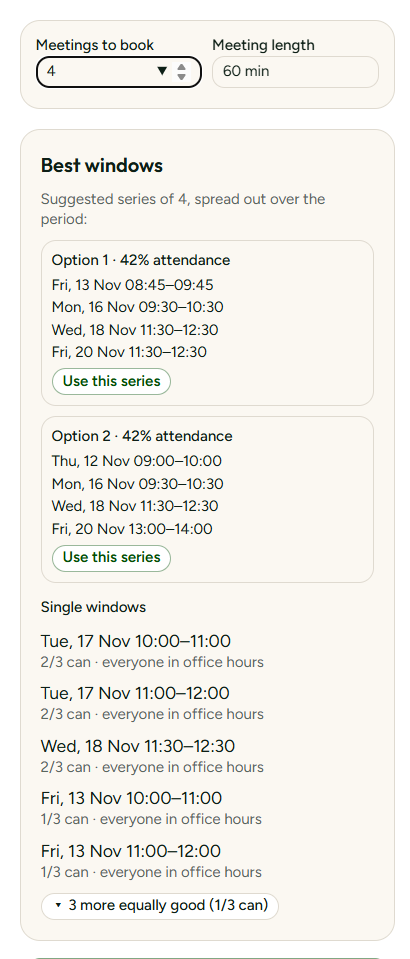
- In the options box above Best windows, adjust:
- Meetings to book: Change this from
1to the number of sessions you need (for example,4for a month of weekly sprint reviews). - Meeting length: Set the session duration (e.g.
60 minor45 min).
- Meetings to book: Change this from
Step 3: Choose an automated series from Best Windows
As soon as you enter a meeting count greater than 1, SyncWithTeam's series algorithm calculates combinations across the entire timeline.
Rather than stacking all four meetings into the first few days, the algorithm searches for slots that:
- Maximize calendar spacing: It spreads sessions as evenly as possible across the poll period (for instance, roughly once per week).
- Ensure attendance of starred participants: Slots where essential attendees are missing are flagged or de-prioritized.
- Balance attendance fairly: If some team members must occasionally miss a session due to time zone differences, the algorithm rotates the impact so no single colleague is excluded from all meetings.
Under Best windows, you will see up to three recommended series packages (for example, Option 1 · 95% attendance), listing each proposed date and time.
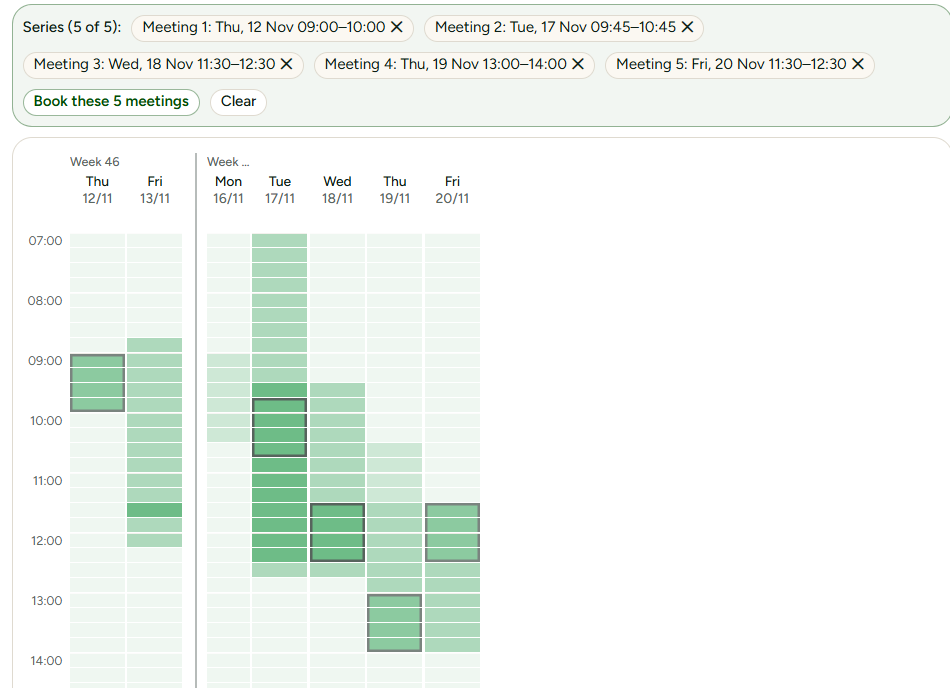
To accept a package, click Use this series. All four meetings will be highlighted in the Series banner above the grid.
💡 Fairness tip: spreading a series is a good moment to rotate inconvenient hours — read When one team always gets the bad meeting time.
Step 4: Hand-picking or adjusting your series manually
If you prefer to curate the exact days yourself rather than using an automated package, you can assemble your series directly:
- Click any green or high-scoring slot in the visual heat map.
- In the cell popup, click + Add to a series (or pick individual slots listed under Single windows).
- The selected time appears as a badge in the Series banner above the grid (e.g., Meeting 1: Mon 10 Nov 14:00–15:00).
- Browse to the next week in your grid and click your second, third, and fourth preferred times.
- If you change your mind about an individual pick, click the ✕ icon on its badge or click the cell in the grid again to remove it.
Once your required sessions are listed in the banner, click Book these 4 meetings.
💡 Related guide: Partial booking: book some times and keep the poll open covers locked periods and unbooking in detail.
Step 5: Finalizing your meetings: Book & Close vs. Book & Keep Collecting
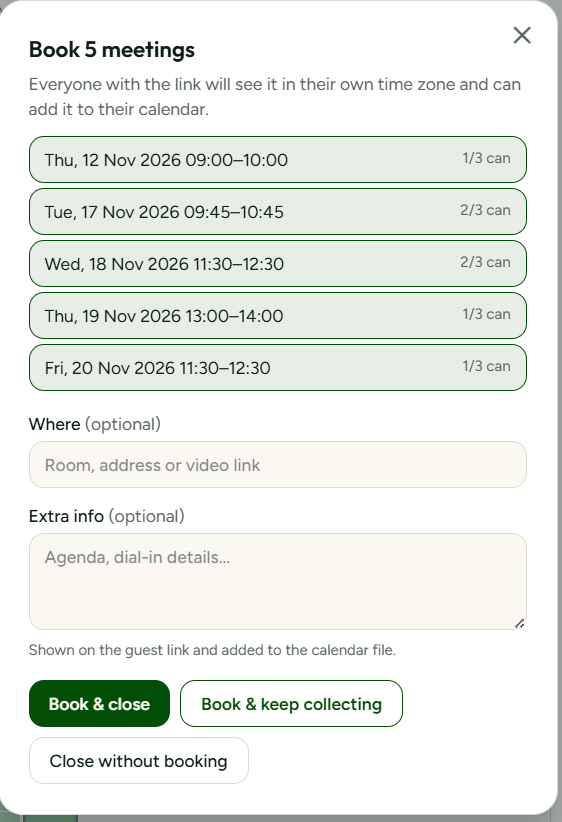
When you click the booking button, the booking dialog opens. Enter an optional meeting location (such as a Google Meet or Zoom link) and meeting notes (agenda or sprint backlog link).
You now have two ways to confirm the series:
Method A: Book & close (All sessions finalized now)
Click Book & close if all dates for your sprint are fixed.
- The poll closes immediately.
- All four meetings are confirmed simultaneously.
- Participants viewing the link see all confirmed dates converted to their local time zone, with instant one-click calendar export (.ics) for every meeting.
Method B: Book & keep collecting (Partial booking)
Click Book & keep collecting if you need to lock down the upcoming sprint kickoff right away, but want to give the team more time to finalize availability for weeks three and four.
SyncWithTeam asks:
- All times up to and including [Date]: Automatically locks earlier weeks so nobody can tamper with established dates, while leaving future dates unlocked for new votes or changes.
- Between [Start Date] and [End Date]: Manually specifies the locked date range.
Existing votes in the locked window remain frozen and visible, while future weeks remain active and editable by participants.