5 min read · Updated 2026-11-09
Partial Booking: How to Book Some Times and Keep the Poll Open
In many scheduling situations, closing a poll completely is premature. You might have found the perfect slot for next Tuesday's project kickoff, but the team is still discussing their availability for the subsequent weeks.
With standard scheduling tools, you face an annoying dilemma: either wait to confirm the first meeting until everyone has answered for all weeks (risking people double-booking next Tuesday in the meantime), or close the entire poll now and create a brand-new poll for the remaining dates.
SyncWithTeam solves this with Partial Booking. You can lock down and confirm one or more meetings immediately, generate .ics calendar files for them, and keep the invitation active so participants can continue voting on the remaining dates.
Here is how partial booking and period locking work.
When to use Partial Booking
Partial booking is ideal whenever your scheduling window spans multiple weeks or phases:
- Immediate kickoffs: Lock in the urgent first sprint planning session so attendees can protect that time in their work calendars.
- Rolling availability: Book one week at a time as teammates confirm client commitments or travel schedules.
- Phased workshops: Confirm Part 1 while giving international participants extra days to coordinate internal cover for Part 2.
Step 1: Select the meeting you want to confirm first
Open your poll in the Organiser view:
- Look at the visual heat map or the Best windows suggestions to find the best time for your immediate session.
- Click the desired time slot in the grid (or click + Add to a series if you want to book two dates right now).
- In the organiser controls, click Book & pick a time (or the booking button in your Series banner).
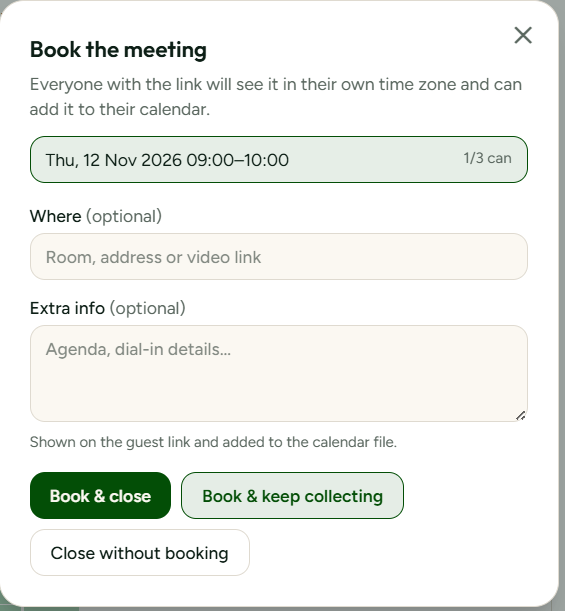
This opens the booking dialog where you can enter an optional location (video meeting URL or room name) and agenda notes.
Step 2: Choose "Book & keep collecting"
Instead of clicking Book & close, click Book & keep collecting.
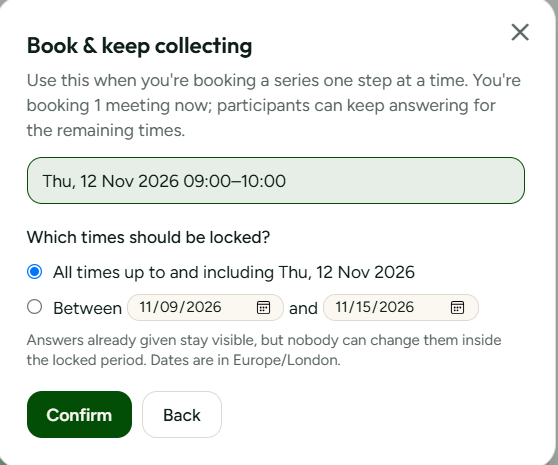
SyncWithTeam moves to the locking configuration screen and asks: Which times should be locked?
You have two locking modes:
- All times up to and including [Date]:
This is the recommended default. It locks all proposed dates from the beginning of the poll up through the date of your booked session. Answers within this period are frozen, preventing anyone from accidentally altering availability for times that are already decided. - Between [Start Date] and [End Date]:
Use this if you are booking a middle session and want to leave earlier or non-adjacent dates open for further discussion.
If a soft or hard deadline had been set earlier and has already expired, SyncWithTeam offers an optional new deadline field here so automated response tracking can resume cleanly.
Click Confirm.
💡 Related guide: Booking multiple meetings from one poll shows how to find a whole series at once.
Step 3: What happens to the poll
As soon as you confirm:
What the organiser sees
- A prominent banner appears at the top: ✓ Booked so far — poll stays open.
- The booked time is listed with its locked date range and a dedicated 📅 Add to calendar (.ics) button.
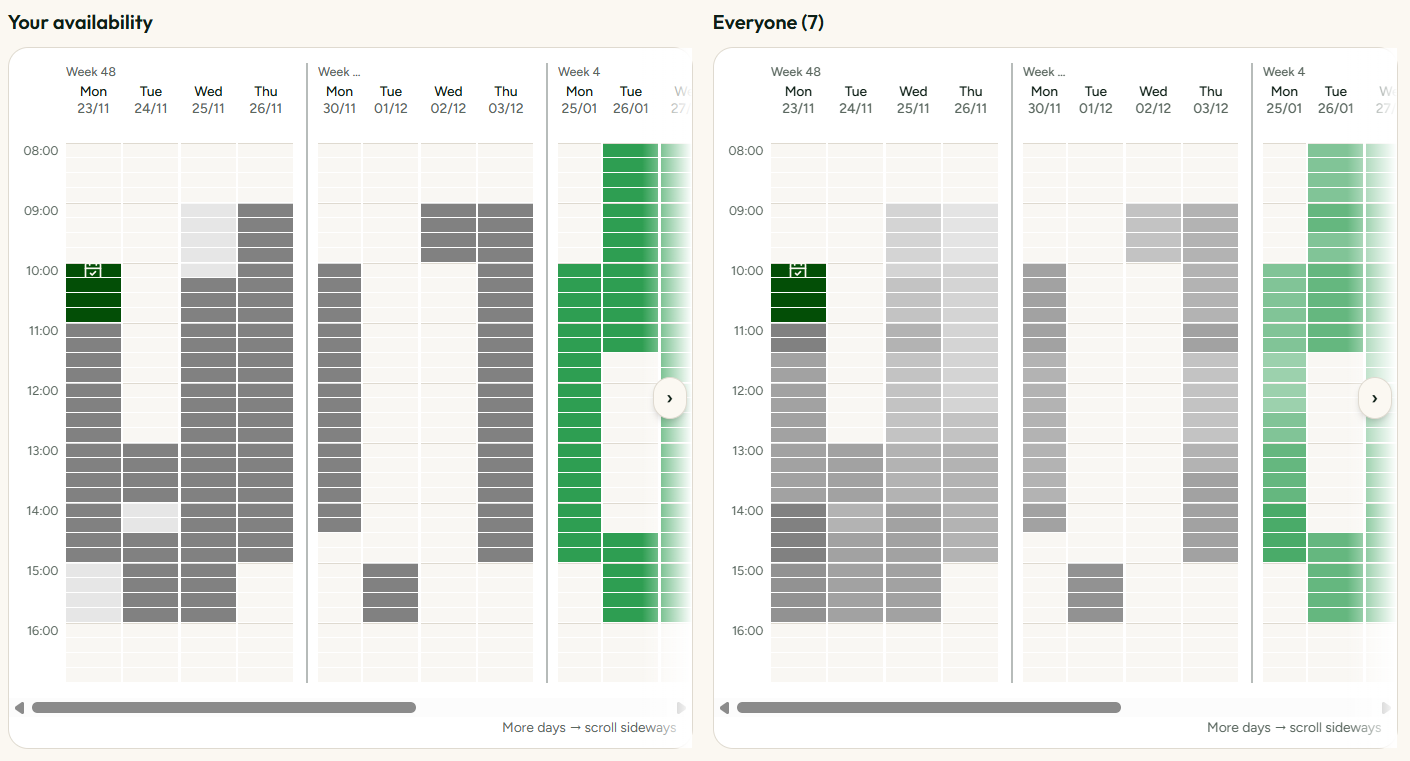
- In the visual heat map, the booked time slot turns solid with a calendar checkmark icon. Locked slots are disabled from editing so nobody can modify them.
- All future, unlocked dates remain completely open for further votes.
What participants see
When team members open the invitation link:
- They see the confirmed meeting clearly marked at the top with a 📅 Add to calendar (.ics) button so they can immediately sync it to Google Calendar, Outlook, or Apple Calendar.
- Their own previous answers in the locked period are displayed but frozen to maintain an accurate record of who agreed to the confirmed time.
- All future dates remain interactive: participants can still paint green/yellow availability or update their times as schedules clarify.
SCREENSHOT: The organiser grid displaying the solid booked cell with checkmark icon, alongside the "Booked so far — poll stays open" banner.
Step 4: Booking the next session or finalizing
When you are ready to book the next meeting in the series:
- Open the poll again.
- Select the next winning time slot from the unlocked portion of the grid.
- Click Book & pick a time.
- You can once again click Book & keep collecting to lock another week, or click Book & close once all meetings for the project have been scheduled.
Step 5: Unbooking a slot if plans change
If circumstances change and a partially booked meeting needs to be rescheduled:
- Locate the confirmed meeting in the ✓ Booked so far list.
- Click the Unbook action chip.
- Confirm that you want to unbook the session and unlock its date range.
The locked status is immediately removed from the grid. The previously frozen time slots become editable again, allowing your team to pick a new date without losing any participant answers.