
6 min read · Updated 2026-11-09
Finding the Best Time and Booking the Meeting: A Step-by-Step Organiser Guide
Once your meeting link is shared, participants' answers begin appearing in real time on your private organiser page.
Unlike traditional polls that simply list raw votes in a table, SyncWithTeam evaluates your participants' responses against working hours, lunch windows, and time zone fatigue.
This guide walks you through reading the responses, finding the optimal slot, and finalizing your booking.
Watch it in action: the 10-Second Booking Challenge.
Step 1: Read the availability heatmap
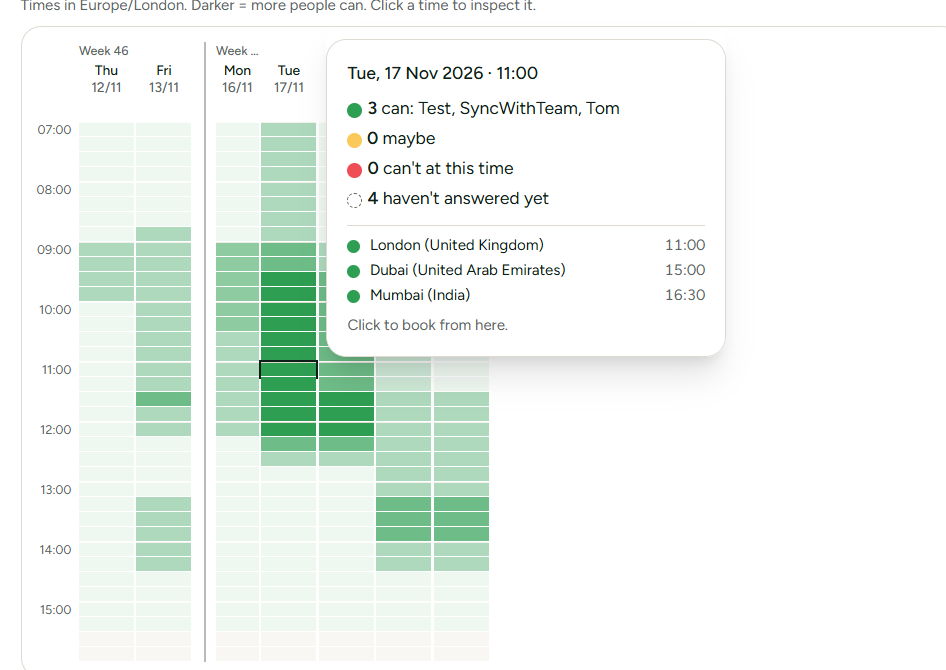
Open your private organiser link. The central area displays the interactive availability grid.
- Cell shades: Darker cells indicate that more participants are available to meet at that time.
- Hover over any slot: A floating summary appears showing the exact participants who can attend, who marked Maybe, and who cannot make it.
- Local time translation: The summary displays what that exact slot translates to across every city included in the meeting.
Step 2: Use "Best windows" for instant recommendations
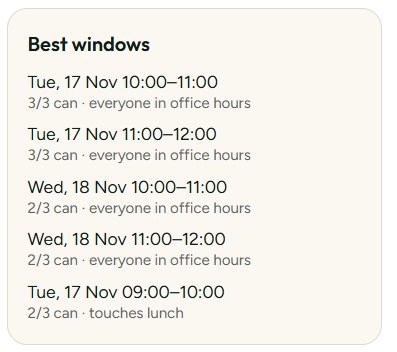
On the right side of the screen, SyncWithTeam automatically calculates and ranks the Best windows.
The algorithm evaluates more than just headcount:
- Essential attendance: Slots where all required participants can attend are prioritized first.
- Total availability: Maximizes participants who marked I can (green) over Maybe (yellow).
- Office hour comfort: Penalizes early mornings, late evenings, and lunch hours across all participant time zones.
Clicking any entry under Best windows highlights that block in the grid and prepares it for booking.
Step 3: Filter by essential participants and clean up duplicates
If certain people must be present for the meeting to occur:
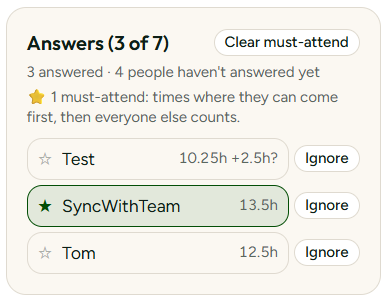
- Look at the Participants list in the sidebar.
- Click the star next to any name to mark them as an Essential participant.
- The Best windows immediately recalculate, filtering out any slot where an essential member is unavailable.
Ignoring duplicate or mistaken answers
If someone responded twice under different names, or answered by mistake, you do not need to delete the entire meeting. Click the Ignore button next to their name. Their answer is instantly excluded from all calculations while remaining safely preserved in your history.
Step 4: Finalize the booking (Single, Series, or Partial)
When you are ready to book, click the desired slot in the grid or select one from Best windows, then choose your booking path:
Option A: Book & close (Single meeting)
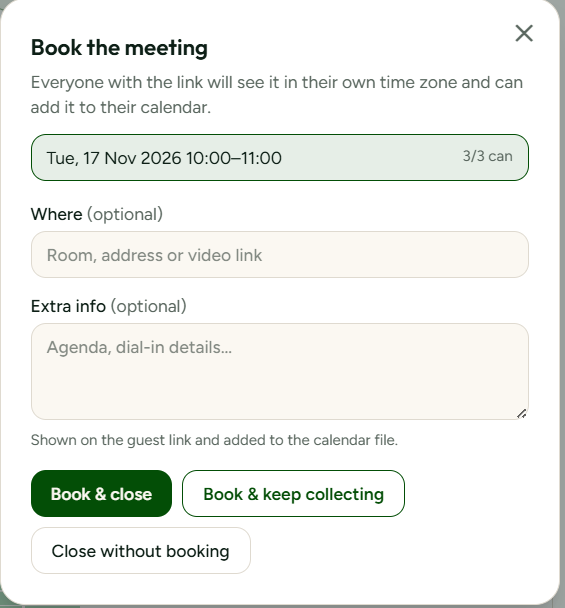
- Click Book the meeting.
- Add an optional Location (e.g. Google Meet link, Teams link, or conference room).
- Add optional Extra info (such as an agenda or dial-in notes).
- Click Book & close. The meeting is finalized, and no further responses can be submitted.
Option B: Add to a series (Multiple meetings)
If you are planning recurring calls or a workshop series:
- Click the first time slot in the grid.
- Click + Add to a series.
- Click the second and third time slots in the grid or Best windows.
- Click Book these meetings to finalize all selected dates at once.
Option C: Book & keep collecting (Partial booking)
If you need to confirm the first week's meeting immediately but want to keep the poll open for upcoming dates:
- Select the first meeting time.
- Click Book & keep collecting.
- Choose which dates to lock (e.g., lock all dates up to today, or lock a specific date range).
- The booked meeting is locked into place, but participants can continue submitting responses for future dates.
💡 Booking several meetings? See Booking multiple meetings from one poll and Partial booking.
Step 5: Download the calendar invite (.ics)
Once booked, the meeting overview updates:
- Automatic timezone conversion: The confirmed meeting time is clearly displayed in your local time and in each participant's city.
- One-click .ics download: Click Add to my calendar (.ics) to instantly generate an invite file compatible with Google Calendar, Microsoft Outlook, and Apple Calendar.
- Guest notifications: Anyone visiting the guest link sees the finalized date in their local clock. If participants provided an email address or responded from a free SyncWithTeam account, booking notifications are delivered directly to their inbox.