
5 min read · Updated 2026-11-09
How to Connect Your Work Calendar Privately: Zero Title Exposure
Cross-referencing your work schedule against a meeting poll is tedious. Most scheduling tools solve this by demanding full read-and-write permissions to your entire calendar account—meaning their servers gain access to client names, internal meeting subjects, and private notes.
SyncWithTeam takes a radically private approach: Zero Title Exposure.
By linking your calendars via standard iCal read-only feeds, you can overlay your real-time busy slots across any meeting in one click. Our servers only ever read when you are busy—never what you are doing, who is invited, or where you are meeting.
Here is how to connect your work and personal calendars securely.
How calendar privacy works in SyncWithTeam
When you connect a calendar to SyncWithTeam:
- No titles or descriptions parsed: The engine parses only start and end timestamps into raw busy and tentative blocks. Meeting titles, descriptions, dial-in URLs, attendee lists, and attachments are discarded immediately.
- Zero calendar data stored: SyncWithTeam does not store your appointments in a database. Busy blocks are evaluated dynamically when you view or answer a poll and then discarded from memory.
- AES-256-GCM encrypted links: Your private calendar feed URL is sealed using server-side AES-256-GCM encryption before saving. Even in the event of an unauthorized database dump, feed addresses cannot be decrypted.
- Multi-calendar merging: You can link up to 5 calendars (e.g. Work, Personal, Freelance). SyncWithTeam merges all busy blocks seamlessly into a single composite schedule.
Where to find your private iCal link
Most major calendar providers offer a private, read-only .ics / webcal:// link:
1. Google Calendar
- Open Google Calendar on the web and click the Settings gear → Settings.
- In the left sidebar, click the calendar you want to share.
- Scroll down to the section named Integrate calendar.
- Copy the address in the box labeled Secret address in iCal format (
https://calendar.google.com/calendar/ical/.../basic.ics).
2. Microsoft Outlook / Microsoft 365
- Open Outlook on the web and click Settings (gear icon) → Calendar → Shared calendars.
- Under Publish a calendar, select your calendar and choose Can view when I'm busy.
- Click Publish and copy the ICS link.
3. Apple iCloud Calendar
- Open the Calendar app on macOS or visit
icloud.com/calendar. - Click the broadcast icon next to the calendar name.
- Check Public Calendar (or share link) and copy the URL (you can paste
webcal://orhttps://addresses directly).
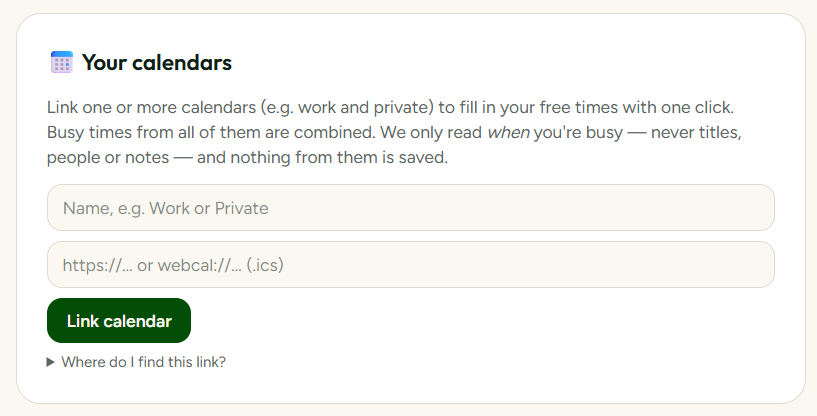
Linking your calendar under Profile & settings
- Sign in and open Profile & settings (also in the top menu ☰).
- Scroll to 📅 Your calendars.
- In the form, enter an optional name (e.g.,
WorkorPersonal). - Paste your
.icsorwebcal://link into the URL field. - Click Link calendar.
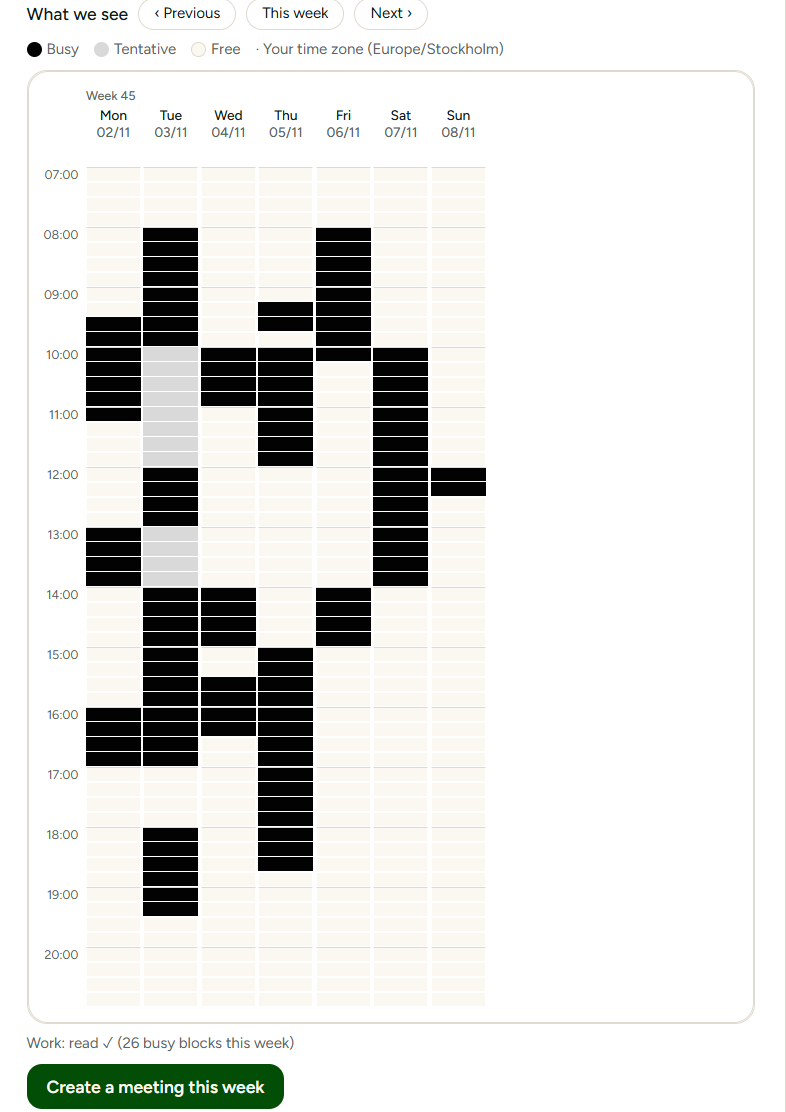
Once linked, the What we see section appears below. You can navigate through the current and upcoming weeks to verify that your busy hours align accurately with your real schedule.

Using your linked calendar
Once connected, your calendar streamlines both creating and answering meetings:
1. One-click meeting creation
Directly below the preview grid in Profile & settings, click Create a meeting this week. This launches the meeting planner with all your free office hours pre-selected, saving you from painting the grid by hand.
2. Answering invitations in seconds
When you open an invitation link as a signed-in participant, a card appears above the grid:
📅 Fill in from my calendar(s) · Using: Work, Personal`
- Choose your preferred window: Office hours (recommended), Awake hours, or Custom range.
- Click Fill in from my calendar.
- SyncWithTeam automatically checks the poll slots against your calendar, paints all your free intervals green, skips any conflicts, and displays a summary (e.g. Filled 14 free slots, skipped 3 where your calendar is busy).
💡 Related: Why create a free account? — calendar overlays are one of several free account conveniences.