
5 min read · Updated 2026-11-08
Managing Reusable Groups, Meeting Defaults, and Your Account Hub
When you organize international meetings regularly, having to search for the same four or five team locations every time you create a poll is unnecessary friction.
A free SyncWithTeam account lets you bundle recurring team locations into Reusable Country Groups and assign Expected Answers to each group, turning meeting setup into a one-click routine.
1. Creating and Managing Reusable Country Groups
If you meet with the same group of colleagues, clients, or partners often, save their locations once so you never have to search for their countries again.
Adding a Group
- Go to My meetings.
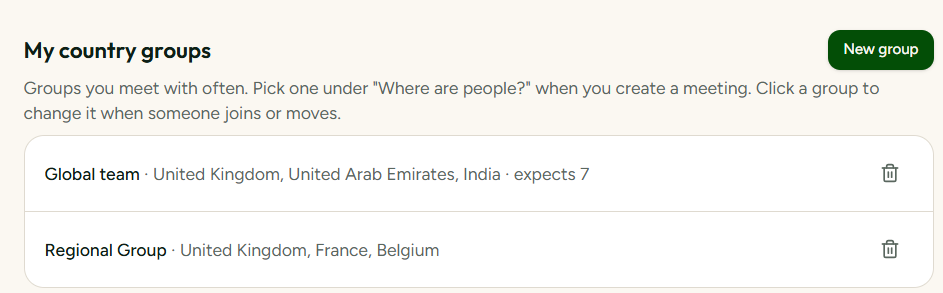
- Scroll to the My country groups section below your meetings.
- Click New group.
- Give the group a clear name (for example Core Engineering, Sales Leads, or APAC Sync).
- Add the participating countries using the search picker.
- Click Save group.
When someone on the team moves or a new colleague joins, simply click the group row in the list to add or remove countries.
Using Saved Groups When Creating a Meeting
When you open the meeting planner to create a new poll:
- Your saved groups appear as quick-select chips directly under "Where are people?".
- Clicking a group name instantly populates all member countries, their local clocks, and their time differences in the grid.
- Need an extra guest for just one session? You can add an extra country to that specific meeting without changing the saved group template.
2. Setting Expected Answers per Group in Your Profile
Different groups have different quorum requirements. A weekly leadership sync might require all 4 leads to respond before you can book, while a cross-functional squad might target 8 attendees.
Instead of typing your target attendance manually every time, you can link an expected answer count directly to each saved group.
How to Set Group Target Sizes
- Go to Profile & settings
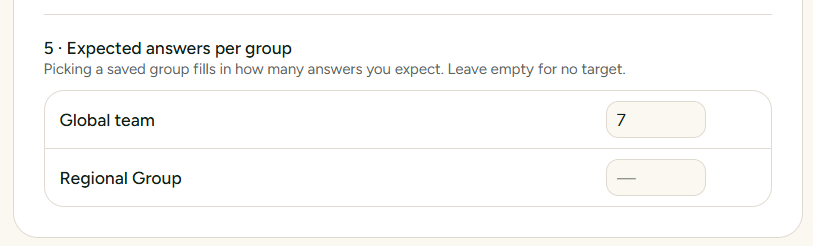
- Under Meeting Defaults, scroll to section 5 · Expected answers per group.
- For each of your saved groups, enter the number of responses you expect to collect.
- The field saves automatically as soon as you type the number.
Why This Matters for Reminders and Stagnation
When you select a saved group in the planner, the poll automatically inherits that group's expected answer count:
- Instant quorum feedback: The poll dashboard tracks how close you are to having all needed responses.
- Smart reminders: If responses stall before reaching your expected count, SyncWithTeam can trigger drive-forward reminders to nudge missing participants before the deadline slips.
💡 Related guide: Setting deadlines and automated reminders explains how the expected answers drive your reminders.
3. General Meeting Defaults
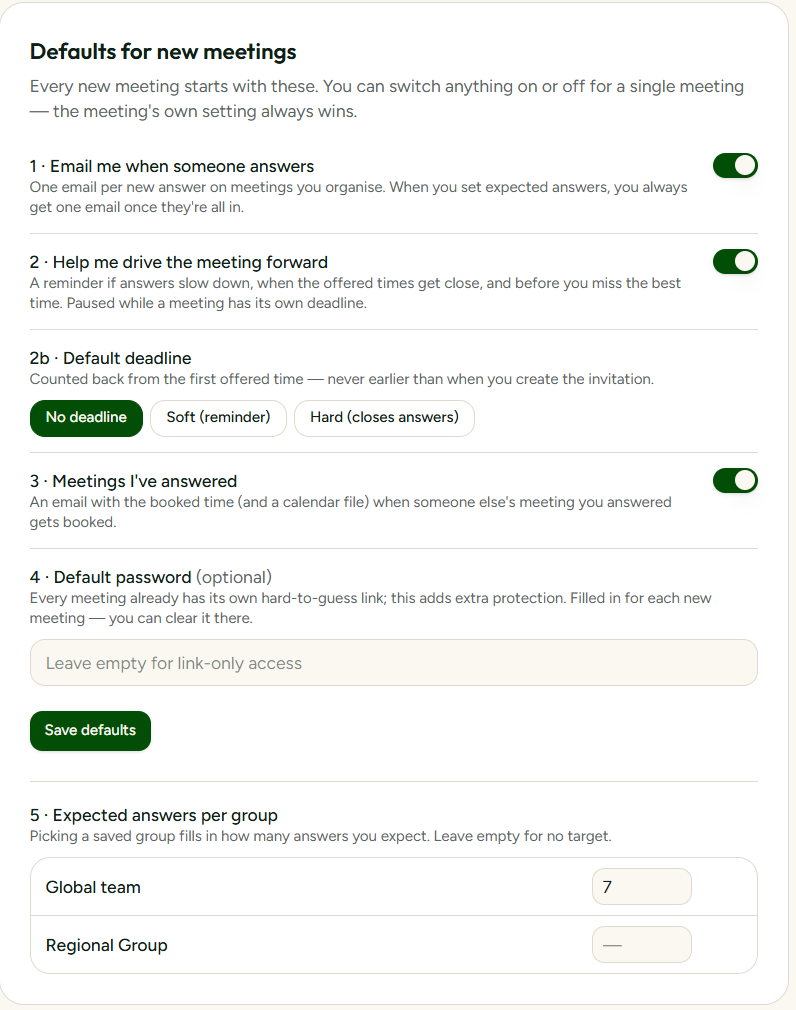
In the same Meeting defaults panel in Profile & settings, you can set baseline defaults for all your polls:
- Default Meeting Duration: Choose 15, 30, 45, or 60 minutes so newly painted slots match your preferred length.
- Preferred Working Window: Define your core working hours (e.g. 09:00 to 17:00). Slots outside these bounds will show soft visual warnings rather than prime availability.
- Default PIN Protection: Require a 4-digit guest PIN by default if your organization prefers restricted access.
4. Standing Group Links and Recurring Poll Rounds
If you coordinate a recurring meeting — like a monthly steering committee, a distributed sprint review, or a regular board sync — creating a new poll link every round often leads to team members losing track of which URL is current.
Saved groups solve this with permanent group links.
Your group's permanent URL and custom alias
Every saved group in your account gets its own short, stable URL:
https://syncwithteam.com/g/<group-id>
Under My meetings → Groups, you can also assign a clean custom alias, such as /team-sync or /steering-committee. Your group's standing bookmark becomes:
https://syncwithteam.com/g/<group-id>/team-sync
How the link moves on ↻ Reuse
When you finalize this month's meeting:
- Mark your chosen time and close the meeting (or click ↻ Reuse directly from My meetings).
- The new meeting is created with all your group's cities, time zones, and working-hour rules already set.
- The custom group link automatically points to the new, active poll.
Your participants can pin that single URL in Slack, Notion, or their browser bookmarks. Whenever they open it, they land straight on the active round without having to search through past chat threads.
Navigating between rounds
Previous rounds are not deleted. When guests open an archived poll, a discreet top navigation bar allows both host and attendees to browse back to past decisions. But the standing bookmark always points forward to the poll that needs answers right now.
Summary
- Save your frequent teams: Set up your recurring country lists under My country groups on My meetings.
- Assign expected attendance: Enter target response counts under 5 · Expected answers per group in Profile & settings.
- Plan in seconds: Click the group chip when creating a new poll to populate all locations, local clocks, and quorum targets instantly.